Step 1: Open Your Settings
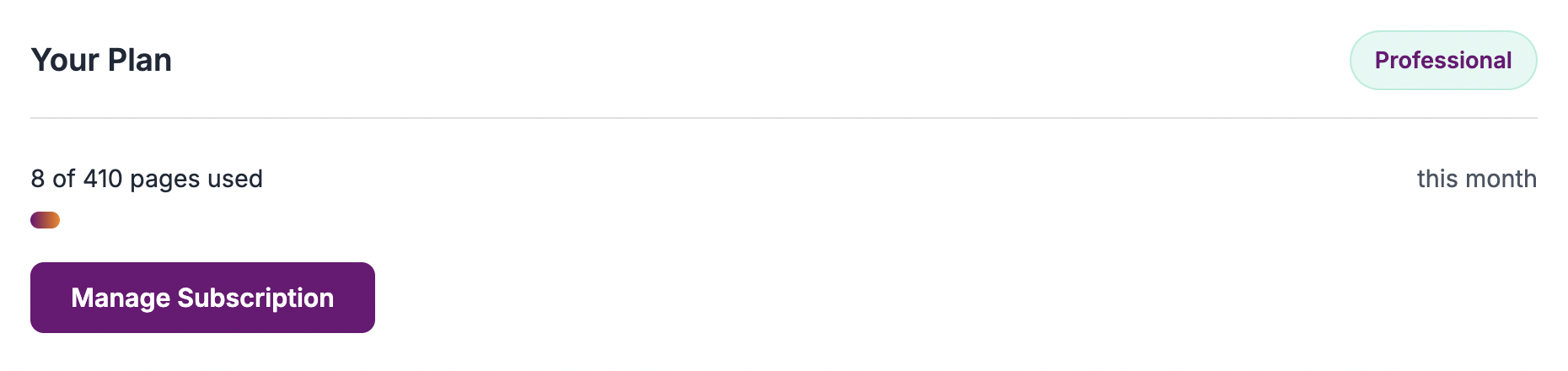
Log in to your account and go to the Settings page. You'll see your current plan displayed at the top, along with your page usage for the current billing period.
Click the Manage Subscription button to open the billing portal.
Step 2: Update Your Subscription
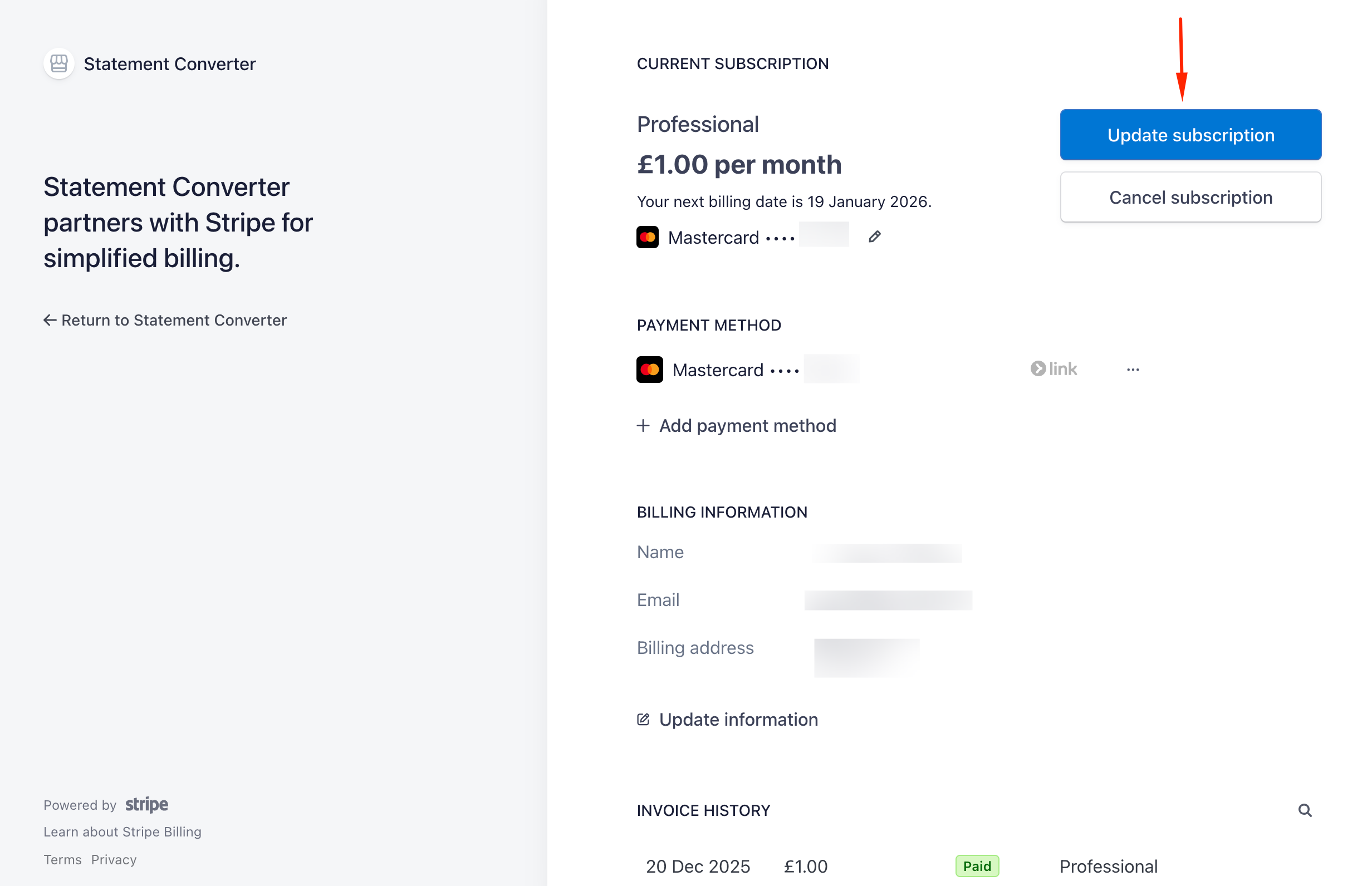
This opens the Stripe billing portal, where you can manage all aspects of your subscription. Click the Update subscription button to change your plan.
Step 3: Choose Your New Plan
Select the plan you want to switch to. You can:
- Upgrade to a higher plan - Get more pages per month. The change takes effect immediately, and you'll be charged a prorated amount for the remainder of your billing period.
- Downgrade to a lower plan - The change takes effect at the end of your current billing period. You'll keep access to your current plan's features until then.
- Switch between monthly and annual billing - Annual plans offer a discount compared to paying monthly.
What Happens to My Unused Pages?
Pages don't roll over between billing periods. Each month (or year, for annual plans), your page count resets to zero.
If you downgrade mid-period, you keep your current page allowance until the period ends. If you upgrade, you get the difference in pages added to your current period.
How to Cancel Your Subscription
To cancel, click Cancel subscription in the billing portal. Your subscription will remain active until the end of your current billing period. After that, your account will revert to the free tier.
You can resubscribe at any time from the Pricing page.
Other Billing Options
From the billing portal, you can also:
- Update your payment method
- Change your billing information
- View and download past invoices
Need Help?
If you have any questions about billing or need assistance with your subscription, contact us at support@usstatementconverter.com.